How to Upload A Large File
Need to upload a file larger than 100MB? Here is the best way to send us a larger file.
STEP 1 - Leave a Note:
When configuring your job on the product page make sure you add a note (under Job Notes) explaining that the file is too large and you need to use WeTransfer.
STEP 2 - Upload a Blank PDF File:
After adding your job to the cart you will need to upload a blank PDF file for that job.
If you don't have one it is easy to create using Microsoft Word or Google Docs.
Open a blank document and type "Do Not Print" in the document. Additionally, you can leave a note here explaining that you need to use WeTransfer for your large PDF.
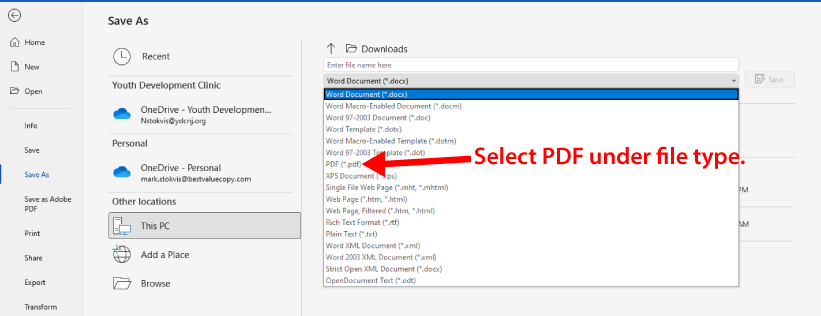
Go to "File" at the top and select "Save as". Choose a place to save and name for the file. Then open the dropdown for file type and select the PDF option. Save the file. Upload this file on the cart page.
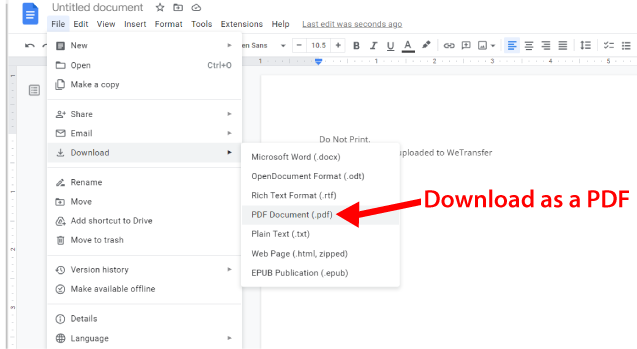
Open a blank document type in "Do Not Print". Additionally, you can leave a note here explaining that you need to use WeTransfer for your large PDF.
Go to "File" at the top, then go to Download and select PDF. Save and name the file as needed. Upload this file on the cart page.
STEP 3 - Uploading File to We Transfer:
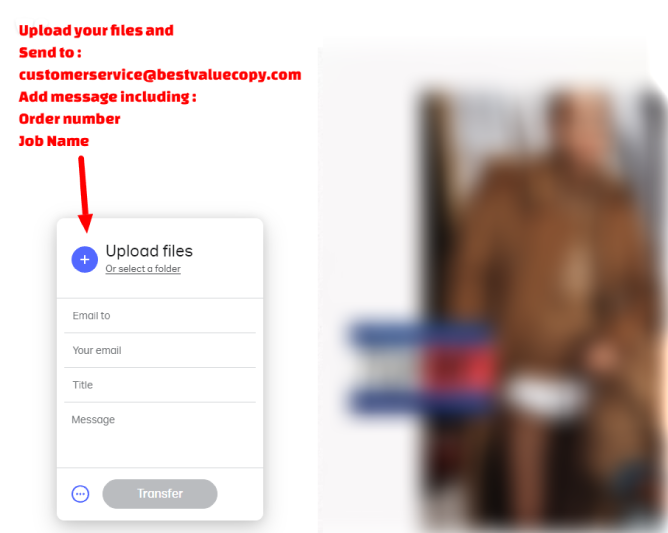
You can upload your large file using WeTransfer. Send the file to customerservice@bestvaluecopy.com Make sure you leave a message that includes the Order number AND the Job Name so we can properly identify which file goes with which order and Job.